
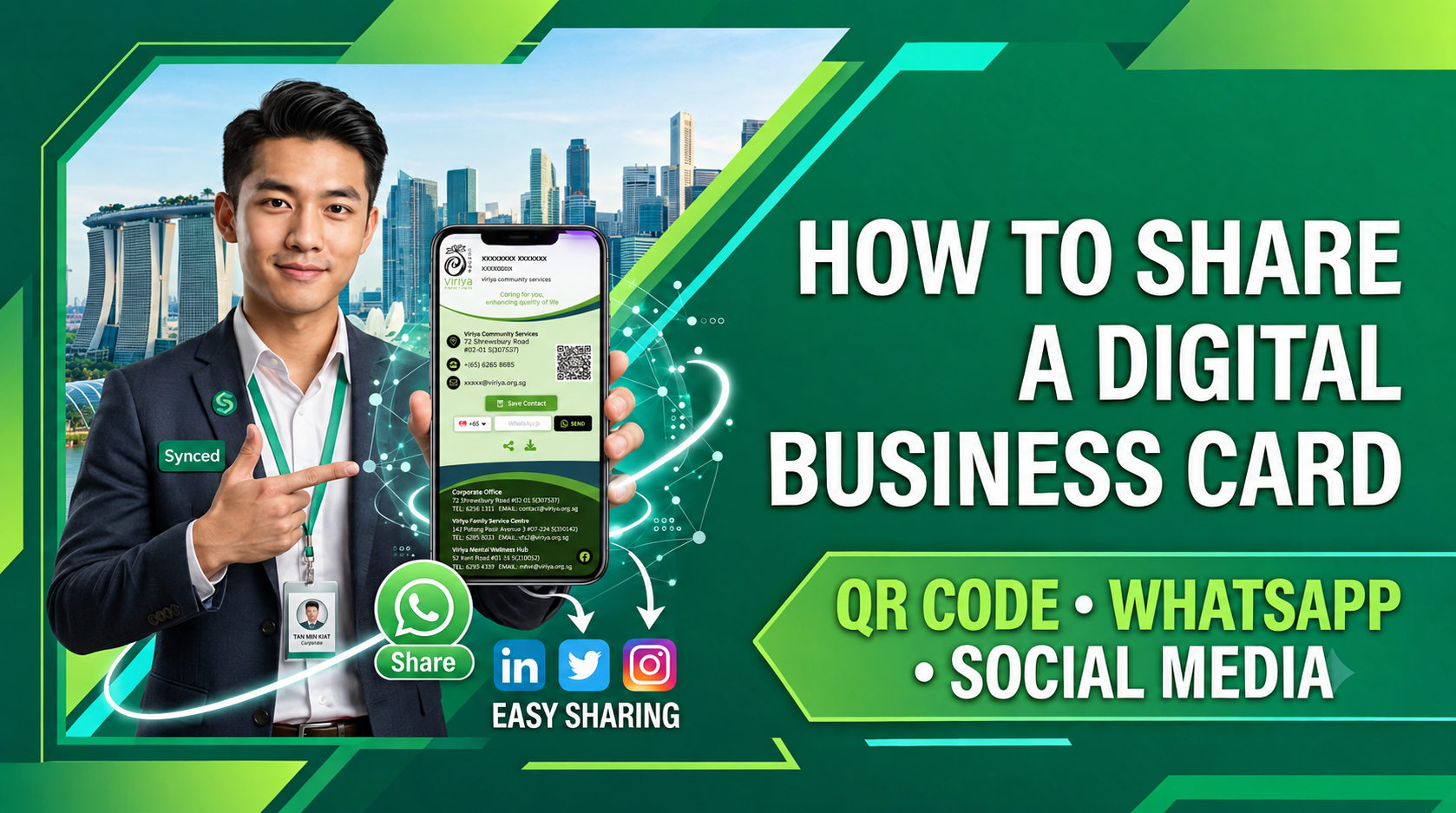
In today’s fast-moving professional world, making a swift, memorable connection is everything. Whether you are networking over coffee in Singapore or pitching to international clients virtually, handing over paper cards is no longer the fastest way to stay in touch.
When you share a digital business card, you eliminate manual data entry errors and allow contacts to save your full contact profile—complete with your phone number, social channels, and portfolio links—with a single tap.
Here is a step-by-step guide on how to share a digital business card effectively using QR codes, WhatsApp, and social media platforms.
1. Sharing via Dynamic QR Code (Best for In-Person Networking)
A QR code business card setup is the ultimate tool for face-to-face interactions at conferences, trade shows, and business meetings.
How to do it:
-
Display on Smartphone Screen Keep your digital card QR code saved on your home screen or lock screen wallpaper for instant access.
-
Add to Apple Wallet / Google Wallet Most modern platforms, such as SG Namecard, let you save your card’s QR code directly into your mobile wallet app. You can pull it up on your smartphone or smartwatch even without an active internet connection.
-
Add to Virtual Backgrounds If you host online meetings on Zoom or Microsoft Teams, add your card’s QR code to your video background overlay. Attendees can scan the screen with their phone camera while you present.
2. Sharing via WhatsApp (Best for Direct & Instant Follow-Ups)
WhatsApp is one of the most widely used business communication tools across Asia and globally. Sending a WhatsApp digital business card link creates a professional touchpoint right inside your prospect’s daily chat app.
How to do it:
-
Send as a Quick Link Copy your personal card URL and send it directly in your WhatsApp conversation following an initial call or meeting.
-
Use WhatsApp Business Auto-Responder Set up an automated welcome message on WhatsApp Business that includes your digital card link whenever a new prospective client messages your business line.
-
Add to WhatsApp Bio Place your card link directly inside your WhatsApp profile description so anyone who views your contact details can access your full portfolio immediately.
3. Sharing Across Social Media Platforms
Your social media channels should act as round-the-clock lead generators. Embedding your digital profile across your social accounts makes it easy for warm leads to connect.
How to do it:
-
LinkedIn Bio & Featured Section Add your digital card URL to your primary LinkedIn profile introduction and pin it under the "Featured" section alongside a clear call to action like "Tap to save my contact info."
-
Instagram & TikTok "Link in Bio" Place your digital profile URL in your bio section so followers can easily access your direct WhatsApp link, email, and booking calendar from one hub.
-
Direct Messaging (DMs) When prospective clients reach out via LinkedIn or Instagram DMs, reply with a short greeting and your card link to move the conversation seamlessly toward a direct phone call or meeting.
4. Bonus Sharing Methods for Maximum Reach
To get the highest return on investment from your smart business card, integrate your link into your everyday communication channels:
-
Email Signatures Add a hyperlinked banner or small QR code to your corporate email signature so every email sent becomes a networking opportunity.
-
NFC Physical Cards If you prefer physical touchpoints, pair your digital card with a sleek NFC card. Tapping the card against a smartphone automatically launches your digital card URL in their browser.
Best Practices When Sharing Your Digital Card
- Zero App Dependencies: Always ensure your card platform loads directly in standard mobile web browsers (Safari, Chrome) so recipients don't need to download an app.
- Prominent "Save Contact" Button: Place a clear button right at the top of your profile that downloads a Virtual Contact File (VCF) directly to their phonebook in one click.
- Include a Clear Call to Action (CTA): Give people a reason to engage further, such as "Book a 15-Minute Intro Call" or "Watch Our Product Demo."
Conclusion
Knowing how to share a digital business card effectively transforms every conversation into a qualified business connection. By combining dynamic QR code business card scans for in-person events with WhatsApp digital business card links for direct follow-ups, you ensure your brand stays accessible 24/7.
Ready to upgrade your networking infrastructure? Build and share your modern digital name card with SG Namecard Homepage today!
Frequently Asked Questions (FAQs)
Q1: Does a recipient need an app to scan my QR code business card?
No. Most modern smartphone camera apps automatically detect and read QR codes. Scanning opens your digital profile directly in their mobile browser without downloading an app.
Q2: Can I share my digital business card without internet access?
Yes. If you save your QR code as a mobile wallet pass (Apple Wallet or Google Wallet) or image on your phone, contacts can scan it offline. The link will load as soon as their device connects to a mobile network.
Q3: How do I send my digital card on WhatsApp professionally?
Include your card link along with a brief, friendly follow-up message—for example: "Great speaking with you today! Here is my digital business card for easy access to my direct line and scheduling calendar: [Link]"
Q4: Can I track how many people open my card link from social media?
Yes. Professional platforms like SG Namecard feature built-in analytics dashboards where you can track total profile views, link clicks, and traffic sources.